Blog > September 2026 > The Door Tablet Evaluation Guide: How to Test Our Room Booking Solution Open
September 2, 2026 3 min read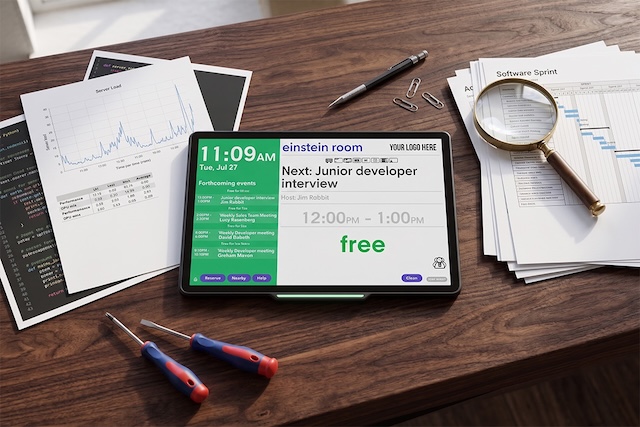
When you are ready to select a room booking solution, you need to know exactly how it will perform within your unique IT infrastructure and physical office space.
We offer the most comprehensive base for testing our Door Tablet products on the market. Whether you want to explore the software in a sandbox, run it on your own servers, or physically mount displays outside your meeting rooms, this guide breaks down every way your teams can evaluate Door Tablet before buying.
Key Takeaways
- Door Tablet offers a range of evaluation options for prospects interested in our room-booking solution.
- You can test the Door Tablet software on your own server to evaluate security, firewall rules and workflows.
- We offer an Interactive Demo Directory where you can discover the software interface.
What is Door Tablet?
Door Tablet is a complete workspace management solution that provides both scheduling software and physical touchscreen displays for your meeting spaces. The platform connects directly to your calendar, such as Microsoft 365 or Google Workspace, instantly updating the screen outside the room when someone books a meeting to stop double-bookings and interrupted conversations.
Our team enables organisations to thoroughly evaluate our scheduling software and physical displays before making a purchase. Prospects can test native integrations through live demos, temporary licenses, and 30-day hardware pilots.
Explore the different ways your team can evaluate our solution, from initial discovery through to hands-on testing for administrators and IT teams:
Level 1: Guided Exploration and Sandbox Testing
Personalised Live Demonstrations
We provide a tailored Zoom walkthrough focusing on your specific scheduling platform and architecture requirements. Register for a free demo.
Interactive Demo Directory
You can immediately click through the software and room display interfaces in our public demonstration environment. An account on our website is required to access the Demo Directory.
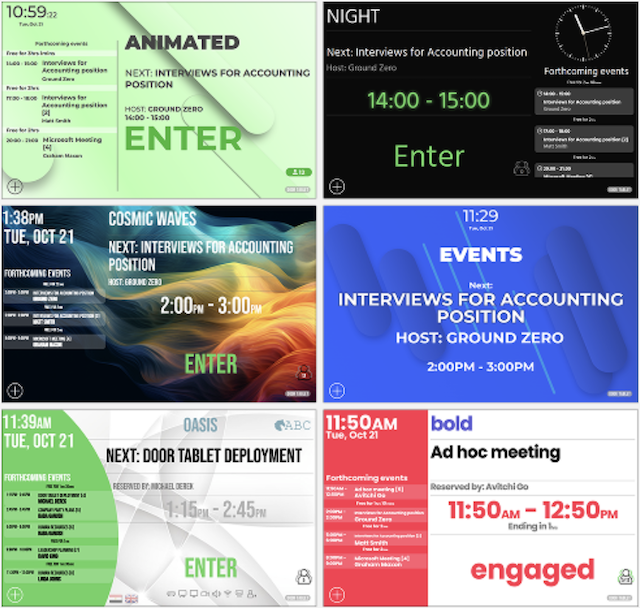
Considering a room scheduling solution for your office? Read this article to learn how to build the case and get your team on board.
Door Tablet School
We have a comprehensive library of training videos and technical guidance. These materials show exactly what setup and administration look like behind the scenes. You can access them whenever you need them.
Level 2: Software Evaluation on Your Own Infrastructure
Test on Your Own Network
IT teams can validate security, firewall rules, and workflows by connecting the software to your own server. First, create an account on our website, then learn how to test our software on your server.
Read more about Door Tablet’s deployment options
Temporary Evaluation Licenses
You can request a temporary license to test live integrations with our supported scheduling platforms, including Microsoft 365, Exchange, or Google Workspace using your own calendar data. This license removes the standard "evaluation software" pop-up that appears after one hour of unlicensed use.
Free Server for Small Deployments
The Door Tablet server is completely free for customer-hosted deployments of four rooms or fewer. Room licenses are still required. This provides the perfect bridge between a trial and a live rollout.
Level 3: Hardware Pilots and Proof of Concept (PoC)
30-Day Hardware Evaluation Programme
You can test the physical tablets in a real-world environment for 30 days and return them if you and your team choose not to proceed. Your facility teams should use this time to test physical mounting options, touch-interface responsiveness, and RFID/NFC badge check-ins.
Learn how to successfully roll out Door Tablet Room Scheduling Solution across your office.
Technical Workshops and Architecture Review
Most customers successfully set up their PoC using our included support, manuals, and video resources. However, if you'd like us to take care of the full setup, plan wider rollout strategies, and handle complex integrations, you can purchase dedicated, in-depth consulting hours as needed.
Ready to start your evaluation? Book a personalised live demonstration with our technical team today.
FAQs
How can I test Door Tablet on my own network?
IT teams can install the software on their own servers or use our temporary evaluation licenses to connect Door Tablet directly to their scheduling platform. Supported platforms include Microsoft 365, Exchange, Google Workspace, Building Engines Prism, LibCal, HCL Domino, GCC High and more.
Is there a free version of the Door Tablet server?
Yes, if you host the Door Tablet server yourself, the server software is free for deployments of 4 rooms or fewer. You only need to acquire the necessary room licenses.
Can we test the physical room displays before buying?
Yes, Door Tablet offers a 30-day hardware evaluation programme. You can deploy the physical tablets to test mounting options, RFID features, and occupancy sensors, with the option to return them if needed.
Blog > August 2026 > How to Scale a Room Scheduler Solution Across Multiple Office Locations without IT Burnout Open
August 26, 2026 3 min read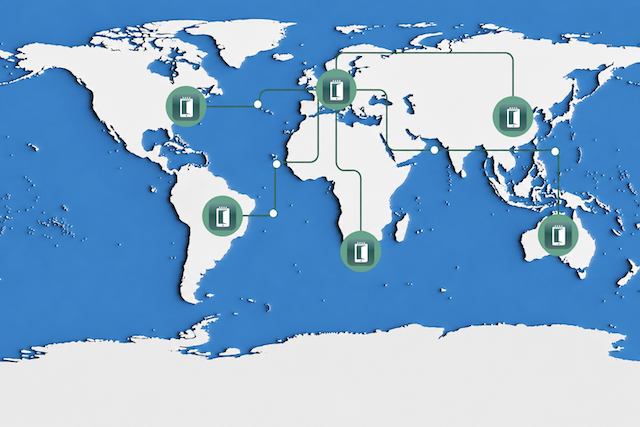
You can scale a room scheduler solution across multiple locations without increasing IT workload by using a centralised management platform that eliminates local infrastructure. It is incredibly rewarding to see IT teams escape the cycle of local server patching and onsite troubleshooting.
Managing remote hardware is notoriously difficult, but the right setup makes it remarkably straightforward. A central platform allows managing meeting room displays in every building from a single dashboard, preventing burnout while keeping global meeting spaces functioning flawlessly.
In this article, you will find out how to deploy and manage Door Tablet across multiple offices worldwide from one central platform, without adding local servers or increasing IT workload.
Key Takeaways
-
A single Door Tablet deployment manages hardware across multiple buildings and countries.
-
Door Tablet CONNECT removes the need for local server infrastructure.
-
IT teams configure, update, and troubleshoot devices remotely from a single dashboard.
What is a Centralised Room Scheduler Solution?
A centralised room scheduler solution is a unified management platform controlling meeting displays across multiple geographical locations from a single server. Door Tablet provides an excellent, scalable option for this exact setup. It eliminates the need for local infrastructure, allowing IT administrators to configure, update, and monitor displays remotely.
4 Steps to Manage Multiple Locations Without the Burnout
Step 1: Choose a Room Scheduler Solution Built for Scale
Managing a fragmented hardware ecosystem creates an exhausting support burden for any helpdesk. The priority is to select a platform that supports growth without multiplying administrative tasks. You want to avoid the headache of logging into separate dashboards to manage individual buildings. A proper system lets administrators define branding, device behaviours, and booking rules when it is needed. This configuration guarantees a consistent user experience on every tablet across your offices.
Step 2: Implement a Central Management Server or Cloud Dashboard
Your IT team can choose between hosting on your own server or Door Tablet CONNECT. For those comparing server deployment options, a dedicated article explores the differences in detail. CONNECT removes the need to maintain server infrastructure entirely, which is a massive relief for system administrators. A single deployment supports multiple offices globally. Administrators add new locations without building out a separate management environment or provisioning new virtual machines.
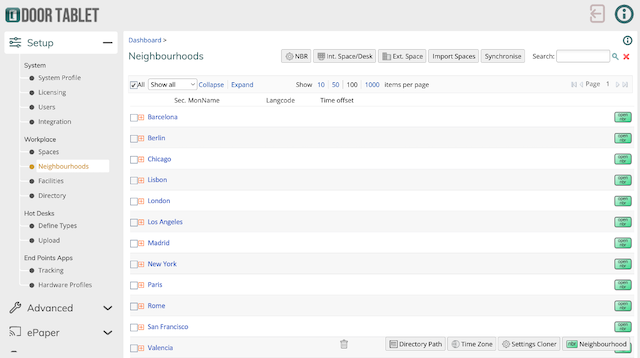
Access all neighbourhoods (offices) worldwide in one place directly on the Door Tablet Dashboard.
Step 3: Sync with Enterprise Calendars
Disconnected calendar systems cause booking conflicts that inevitably escalate to the helpdesk. The system uses the same Microsoft 365, Exchange, or Google Workspace integration across all locations. Users experience identical booking interfaces whether they are in London or Tokyo. This directly reduces frantic support tickets regarding calendar sync failures or double-booked rooms, giving everyone a much smoother workday.
Step 4: Automate Remote Configuration and Troubleshooting
Sending technicians to deal with basic display issues drains both budget and morale. Administrators can perform device configuration, updates, and troubleshooting remotely. Central management allows IT teams to avoid the heavy overhead of supporting separate systems in each office. Fixing an offline display directly from the dashboard is a fantastic capability that saves countless hours.
FAQs
Do I need a separate room scheduler solution server for each office location?
No, a single Door Tablet deployment supports multiple offices, buildings, and countries. Customers manage all locations centrally from one customer-hosted server or through the Door Tablet CONNECT cloud platform. Adding new offices requires zero new management environments, drastically reducing local IT infrastructure requirements and maintenance hours.
How do you manage Door Tablet firmware updates remotely?
Administrators can push firmware updates and configuration changes to every meeting room tablet directly from the central management console. This remote capability eliminates the need for onsite IT visits. Teams schedule global updates during off-hours, ensuring device compliance and security without disrupting daily office operations or weekend personal time. On selected Door Tablet hardware, this can even be managed securely over a cloud connection without requiring a separate Mobile Device Management (MDM) solution.
Conclusion and Next Steps
Scaling a room scheduler solution requires choosing a vendor who can provide the system to do that seamlessly. Centralised management prevents IT burnout by eliminating local servers and remote troubleshooting hurdles. Your company can expand efficiently when a single platform controls the global deployment.
Book a demo today to see how Door Tablet simplifies multi-office management for the IT department.
Blog > August 2026 > Door Tablet Room Booking Solution for Medical Spaces Open
August 24, 2026 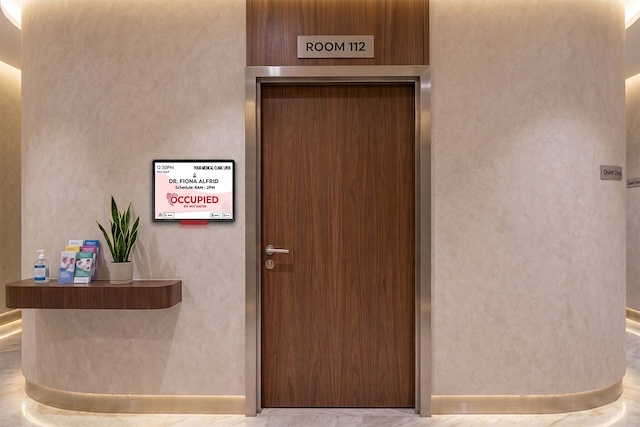
Managing a busy clinic floor is stressful enough without the constant worry of an unexpected interruption during a private patient consultation. When you deal with high room turnover and constant foot traffic, relying on manual door checks often leads to errors.
Door Tablet displays, motion sensors, and scheduling software provide a reliable way to keep consultations undisturbed. The system allows patients to see the room status at a glance, which prevents accidental entry while a doctor is with someone else.
Door Tablet Room Booking Solution for Medical Spaces
You can place Door Tablet digital displays outside of consulting rooms to provide a live status update. Instead of requiring staff to check in manually on the tablet screen, you can install our ceiling-mounted motion sensors to manage room status.
When a doctor enters the room, these sensors detect the movement and automatically update the status on the display. The tablet then shows clear, helpful messages like "In Use - Do Not Disturb" or "Please Knock" to let patients and staff know the room is occupied. Door Tablet room-booking displays ensure privacy is maintained without requiring extra steps from your team. For a broader view, you can also connect these updates to LED walls in the hallways, which let anyone see if a consultation room is busy while they walk through the clinic.
Want to truly personalise your space? Our room displays can be tailored to reflect the branding of your medical facility, creating a professional look that resonates with your patients.
“We have seen room occupancy rates increase by 75% while administration distraction in managing our room bookings has eased up considerably.”
- One Stop Doctors’ Testimonial
Wayfinding Displays for Medical Spaces
The goal is to provide a clear view of the whole facility, not just one room at a time. A floor plan on a web browser gives receptionists and head nurses a live, bird’s-eye view of the entire ward. Door Tablet Wayfinding system talks to your existing scheduling tools, so you never have to type the same information twice; all your displays and your booking software always match.
SIGNS, a cloud-based signage tool, helps patients be informed about the clinic’s news. A simple drag-and-drop screen allows staff to show everything from maps and doctor bios to clinic services, ensuring that patients feel informed from the moment they walk through the doors. SIGNS integrates seamlessly with our wayfinding displays; the display can even switch dynamically between general broadcasts and specific navigation maps to ensure patients feel informed and can find their way within the clinic effortlessly.
Ready to let your team focus entirely on patients instead of managing room availability? Book a demo with our team today to see how Door Tablet works in a live medical setting.
FAQs
1. Can we hide sensitive booking information from patients?
Yes, booking titles can be hidden or anonymised.
2. Can we display doctor names or department names outside each room?
Yes, Door Tablet can show doctor names, clinic names, department names, or custom room labels to make navigation easier for patients and visitors.
3. Can we reduce interruptions during consultations?
Yes, our tablets display the live status of every room, so there is no need to knock to check if the doctor is in or not. We can display helpful messages like "In Use - Do Not Disturb" or "Please Knock" on the tablets.
4. Can it integrate with hospital scheduling systems / bespoke software?
Often, yes, via API, get in touch and let us know which software is used.
5. Can we use battery-powered ePaper outside rooms?
Yes, ideal for displaying bookings and which doctor uses the room, but it is not interactive.
6. Can we brand it with our hospital logo?
Yes, your technical team can have complete branding control using CSS. We also offer branding packages and can create a full design for your facility.
7. Can we see room occupation rate?
Yes, we have embedded analytics; your team can see a variety of reports on the admin dashboard.
8. Can patients easily find the right consultation room?
Yes, clear room displays and live status updates help patients and visitors find the correct room quickly. We also offer wayfinding displays that can direct people to their consultation room with clear routes.
9. Can doctors or staff book rooms directly from the screen?
Yes, interactive Door Tablet displays allow authorised users to make bookings directly at the room if you allow bookings from the tablet.
10. Can we start with one department before rolling out wider?
Yes, many healthcare clients begin with a pilot area or department before expanding across the site.
Blog > August 2026 > How to Keep Your Team Meetings Valuable and Engaging Open
August 19, 2026 4 min read
Most of us spend too much time in poorly planned meetings, leaving teams exhausted and managers frustrated. The secret to running engaging meetings is adapting your management style to the room. What works for a hybrid meeting fails for an in-office meeting, and neither approach suits 1:1 meetings. Here is how to fix your calendar and give your team their time back.
Key Takeaways:
Stop using meetings for basic status updates: Implement the 15-30-45 rule and a strict "no agenda, no meeting" policy to ensure gatherings are used exclusively for deep problem-solving and collaboration.
Adapt your management style to the environment: For hybrid meetings, enforce the "One Screen, All Screens" rule to ensure equal participation. For in-office days, protect focus time with meeting-free days and reserve physical meetings for high-trust tasks.
Protect 1:1s and remove physical friction: Keep 1:1 meetings focused entirely on employee well-being and career development. Additionally, eliminate the chaos of in-office room scheduling by using dedicated hardware solutions like Door Tablet.
The Anatomy of Engaging Meetings
A valuable meeting solves a specific problem instead of just reporting status. Good managers protect their team's focus and mental energy when they evaluate the true purpose of every calendar invite. If the group only listens to one person read a list, that definitely could’ve been an email.
- Try the 15-30-45 Rule. Cap quick alignment chats at 15 minutes. Give execution planning 30 minutes. Reserve 45 minutes for deep problem-solving.
- Look at the data. Microsoft's Human Factors Lab found that back-to-back meetings cause a buildup of beta waves in the brain, leading to high stress. Giving people even a five-minute break between calls resets their focus. Asana reports that knowledge workers spend 60 per cent of their day on "work about work."
Mastering the In-Office Meetings
An in-office meeting gives you tools that digital spaces lack, like reading the room and physical whiteboarding. You should use this time for tasks that require high trust, debate, and immediate feedback. Before you send a meeting invite, take this into account:
- Show the cost. Shopify built a calculator into their internal calendar app that shows the estimated financial cost of every meeting before the organiser clicks send. You can do this manually when you multiply the average hourly rate of your attendees by the meeting length. It forces everyone to ask if the gathering is truly worth the money.
- Protect focus time. Companies like Dropbox use strict "No-Meeting Days" to give their staff uninterrupted work periods. The Sloan Management Review found that introducing just one meeting-free day a week increases productivity and reduces micromanagement.
Best Practices for High-Energy Hybrid Meetings

Hybrid environments often create presence disparity, where remote workers feel sidelined because the conversation naturally caters to those sitting around the boardroom table. You must actively manage the discussion to ensure equal participation and make everyone feel valued.
- Adopt the "One Screen, All Screens" rule. Software companies like Atlassian and Lucid require every attendee to log into the video call on their own laptop, even if half the team is in the same conference room. Everyone takes up the same amount of screen space, and everyone collaborates on the same digital whiteboard.
- Go to the screen first. Always direct your first questions to the remote staff on the screen before turning to the people sitting next to you in the room.
1:1 Meetings: Your Best Management Tool
Think of 1:1 meetings as protected time to support your team members, not for project check-ins. This is your primary opportunity for employee retention, active listening, and building psychological safety.
- Flip the agenda. Employees submit their project updates in writing beforehand. The conversation focuses strictly on career development, removing roadblocks, and checking on the person's well-being.
- Let the employee lead. Ask your team members to bring three topics they want to discuss. Your job is to listen and unblock them instead of dictating their daily workflow.
4 Universal Rules to Keep Team Meetings Useful
Adopt a "Camera-Optional" Policy
Research from SAP suggests forced video increases screen fatigue and reduces listening comprehension. Give your staff the autonomy to turn off their cameras when they need to focus on the audio. Explain the reasoning behind this policy, so your team feels comfortable taking screen breaks without looking disengaged.
Always Set a Collaborative Agenda
A single author should not dictate the entire conversation. Allow team members to add items to the shared meeting agenda 24 hours beforehand. This practice increases engagement because participants have a direct stake in the topics discussed.
Enforce the "No Agenda, No Meeting" Rule
Cancel any calendar invite that lacks a clear agenda the day before. This forces organisers to think critically about what they want to achieve and shows respect for everyone's time. It also gives attendees time to prepare relevant data and ideas.
End with Clear Action Items (Who does What by When)
Never end a conversation without documenting the next steps. Assign specific tasks to specific people with hard deadlines. This eliminates confusion and turns your discussion into clear deliverables.
Fixing the Room Booking Problem with Door Tablet
You can eliminate scheduling conflicts with Door Tablet's booking software and display hardware. Nothing ruins an in-person session faster than wandering the halls looking for a meeting room.
Door Tablet stops this confusion through a few practical features:
- Instant booking: Employees can reserve an open room directly from the touchscreen mounted outside the door.
- Direct calendar sync: The tablets update your central company calendar right away, stopping double bookings.
- Ghost meeting prevention: The system releases the room for someone else to use if an organiser fails to check in on the tablet within a set time after the start time.
Book a demo today to see how Door Tablet makes booking a meeting room effortless.
FAQs
How do you make a hybrid meeting more engaging?
Require everyone to join the video call from their own laptop, even if they are in the office. Direct your first questions to remote attendees to overcome presence disparity.
What is a good agenda for a 1:1 meeting?
Skip the status updates. Focus the agenda on career progression, removing immediate blockers, and discussing employee wellbeing. Ask the employee to build the agenda themselves.
How long should an in-office meeting last?
Follow the 15-30-45 Rule. Limit quick syncs to 15 minutes and execution planning to 30 minutes. Cap complex problem-solving sessions at 45 minutes to maintain focus and prevent schedule fatigue.
Blog > August 2026 > The Ultimate Guide to Activity-Based Working Technology Open
August 12, 2026 3 min read
Activity-based working relies on smart workspace management technology to prevent office chaos and capture accurate space utilisation analytics. Giving your team the freedom to choose different zones for specific tasks demands a system that maps out real-time availability across the entire floor plan. Your hybrid workplace strategy falls apart if people cannot easily locate and reserve the exact spaces they need.
Key Takeaways
Task-specific zones increase efficiency: Replacing assigned seating with dedicated work areas reduces the total office space needed per employee.
Disconnected tech creates friction: Flexible offices struggle without unified booking systems, causing wasted time and unused room reservations.
Data drives floor plans: Linking booking tablets and sensors provides real-time occupancy metrics to help you adjust layouts accurately.
What is Activity-Based Working (ABW)?
This model moves away from the traditional concept of assigning one desk to one person. It provides a variety of purpose-built spaces tailored to specific tasks instead. An employee might start their morning in a quiet focus pod, move to an open collaborative zone for a team brainstorm, and take an afternoon client call in a soundproof phone booth.
The Proven Benefits of ABW
ABW environments, to a greater extent than traditional offices, satisfy employees' needs and preferences, as well as their autonomy, thereby stimulating creativity by allowing individuals to use various work environments and manage their time in ways that enhance their creative process (Heerwagen & Kinzie, 2007). It can also contribute to more efficient resource utilisation (Jung et al., 2020). Research confirms that by implementing shared collaborative areas and flexible workstations, organisations can reduce office space and the overall amount of square footage needed per employee (Maina et al., 2019).
Employees are 2.5× more likely to say their workplace supports both individual and team productivity when they have access to diverse, task-based spaces, especially ones built for collaboration.
- Gensler’s 2023 Global Workplace Survey
Why ABW Fails Without Workspace Management Tech
Transitioning to an activity-based working office means shifting from assigned desks to a flexible, task-driven environment. The core hurdle is overcoming resistance to change while optimising space and technology. Moving to this model presents several specific obstacles:
- The "My Desk" Mentality: Employees often feel a loss of ownership or territoriality when they no longer have an assigned workspace.
- Space Mismanagement: Poor zoning can lead to a lack of quiet zones or overcrowding in collaborative areas.
- Distractions: Activity zones require acoustic shielding. Noise levels can disrupt focused work.
- Tech Disconnects: Equipping different zones with mismatched hardware and booking tools creates immediate frustration when those separate systems cannot communicate with one another.
Relying on a manual or poorly integrated booking system for these spaces creates immediate friction. Employees waste valuable time wandering the floor looking for the right place to work, whether they need a hot desk, a focus pod, an open collaborative space, or a quiet area.
Abandoned bookings present another massive roadblock. This happens when a space is reserved on the calendar, but no one actually shows up. These unused reservations lock others out of usable spaces and frustrate teams who just need a place to sit down and work. With effective workspace management solutions, you can eliminate these challenges for good.
The Essential Tech Stack for Activity-Based Working
Eliminating Friction with Conference Room Displays
Placing a conference room display in key areas solves the visibility problem instantly. Employees can see real-time availability as they walk past. These tablets are highly versatile and allow your team to book different spaces across the office, regardless if it is an enclosed meeting room, a hot desk, or an open collaboration area. If a space is free, staff can book it directly on the screen. If it is occupied, they can use the interface to find and reserve alternative areas nearby.
Tracking True Usage with Meeting Room Sensors
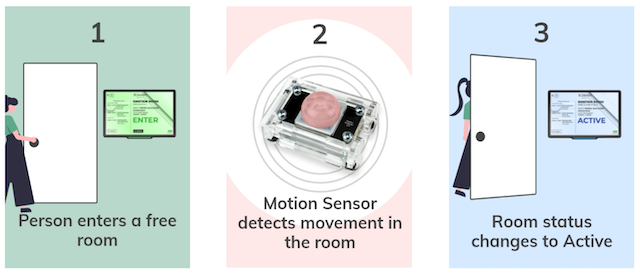
Meeting room sensors track actual occupancy data within your spaces. When someone books an area but fails to show up, the hardware detects zero motion. The system then automatically releases the reservation back to the calendar. This prevents unused bookings from tying up valuable real estate and ensures your scheduling system always reflects reality.
Wayfinding Displays
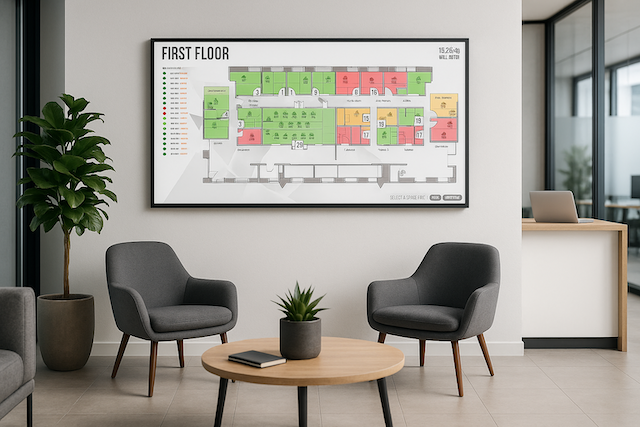
Wayfinding displays show exactly what is happening across the entire office floorplan. If an employee books a room or a desk, they can look at the main screen and get clear directions to their reserved space. This prevents the daily confusion of navigating a flexible office layout.
How Sensors and Displays Work Together to Optimise Space
These tools work best as a connected ecosystem. Sensors provide the raw occupancy data, the software processes this information, and the displays communicate it to employees instantly.
Facilities managers can then review the resulting data to understand which zones are popular and which remain underutilised. You can adjust your floor plan based on hard facts rather than assumptions.
Build a Smarter Workspace Today
Managing an activity-based working environment successfully requires the right hardware and software. Deploying meeting room sensors with conference room displays gives your team the tools they need to navigate the office without frustration. You also gain the occupancy data required to continually refine your spaces.
Ready to improve your office experience?
Book a demo with Door Tablet today!
FAQs
How do meeting room sensors improve activity-based working?
They track actual human presence instead of relying on calendar data. If a scheduled meeting does not happen, the sensor detects the space and frees it up for other employees to use.
Do I need a conference room display for every meeting space?
It depends on your space; placing a screen near enclosed meeting areas and open zones provides immediate clarity. It prevents interruptions, shows schedule availability, and allows staff to secure any space instantly.
What is the difference between hot desking and activity-based working?
Hot desking simply means employees do not have assigned seats and grab any available desk. Activity-based working is a broader strategy providing distinct, specialised areas designed for specific task types.
Blog > August 2026 > Digital Signage vs. Conference Room Displays: What’s the Difference? Open
August 5, 2026 4 min readWe will explain the structural and functional differences between digital signage and a dedicated conference room display setup in corporate properties. You’ll have a clearer picture for evaluating your facility's layout, making it easier to pick the perfect tool that fits your operational needs!
3 Key Takeaways
- Purpose-Driven Choice: Select a dedicated room panel to coordinate physical spaces and resolve booking conflicts, but use digital signage for broad, top-down communication.
- Interactivity Matters: Room panels rely on active touchscreen input for instant scheduling right at the door, whereas digital signage screens operate as passive informational monitors.
- System Integration: Effective space management requires direct link-ups with your corporate calendars, while signage relies on distinct content playback lists.
What is a Conference Room Display?
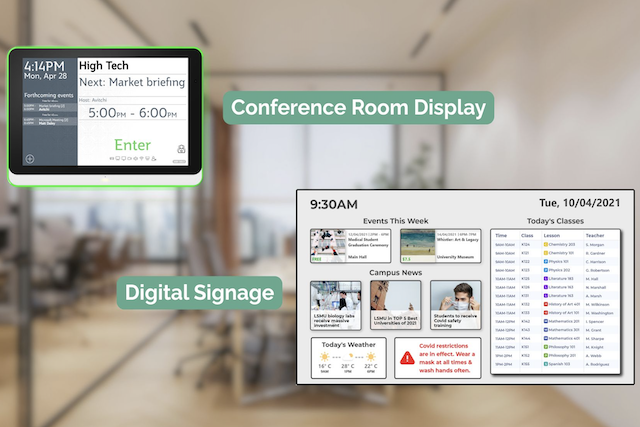
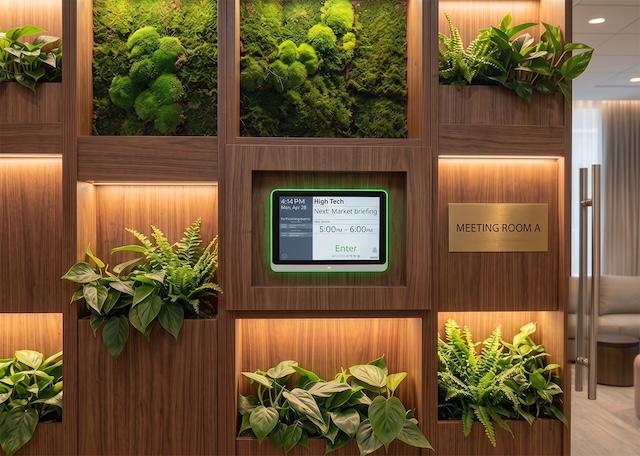
A conference room display is a purpose-built, interactive tablet fixed outside a meeting space to handle scheduling right at the door. It serves as the physical touchpoint for your meeting room scheduling software, indicating whether a room is occupied or available. This type of room booking display allows employees to see the daily schedule at a glance or walk up and reserve the space instantly for an impromptu chat. The software pulls live data directly from your company calendars to display the live status of every room on the displays.
What is Digital Signage?
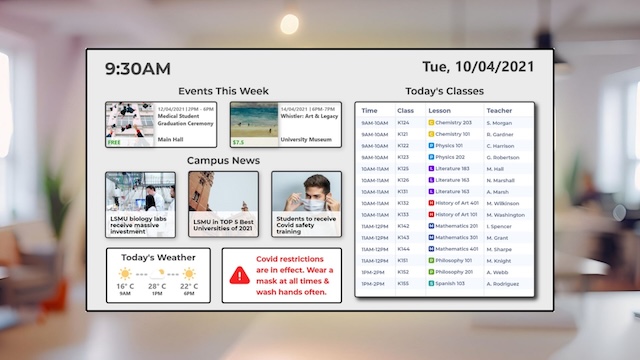
Digital signage represents a much broader category of screens used for one-to-many corporate communications. You typically find these large, non-interactive monitors in reception areas, cafeterias, or main corridors. Facilities teams use digital signage software to display company dashboards, event schedules, or wayfinding screens to guide visitors. These screens are excellent for broadcasting information to everyone at once, but they do not allow employees to manage or book the physical spaces where they sit.
Key Differences: Conference Room Display vs. Digital Signage
Primary Purpose and Use Cases
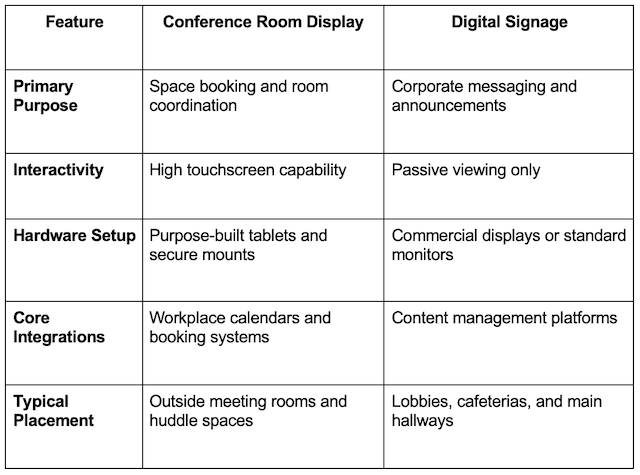
Meeting room booking signs exist to solve a coordination problem. They give your teams clarity over who owns a space and for how long. Digital signage operates as an internal broadcasting channel, turning bare walls into knowledge hubs for general updates.
Interactivity and Touch Capabilities
A booking panel relies entirely on touch. Employees use the screen to check into a meeting, extend their session, or release a room early if they finish ahead of schedule. Digital signage is entirely passive, meaning employees look at it but never touch it.
Software and Calendar Integrations
To prevent scheduling headaches, a booking screen requires calendar integrations with platforms like Google Workspace and Office 365. It must update instantly when someone cancels or books a meeting online. Digital signage relies on content loops managed through a central media player rather than corporate calendars.
Hardware Specs and Mounting Options
Dedicated room tablets require specific hardware features to survive daily office life. They use Power over Ethernet (PoE) to get power and network data through a single cable, keeping installations tidy. They also feature prominent LED status lights that glow red or green so people can see availability from down the corridor.
When to Choose Conference Room Displays
You should invest in conference room displays if your current office layout suffers from constant scheduling friction. If employees routinely argue over who booked a room, or if spaces sit empty because of ghost bookings, a physical panel fixes the issue. It improves office productivity by enabling quick, ad-hoc meetings right at the door. It gives your team confidence that when they book a room, it will actually be available.
Introducing new tools to your workspace shouldn't feel like an uphill battle. Your team does not need overcomplicated technology that requires extensive training just to book a room. This common scheduling problem can be solved easily with a proper workspace assessment and a clear rollout strategy. We are here to simplify your environment, not to develop new problems for your teams.
When to Choose Digital Signage
Digital signage is the correct choice when your primary goal is community building and top-down communication. It belongs in your lobby to welcome clients, or in the breakroom to display company milestones and social updates. If you need to show real-time metrics, emergency alerts, or simple building directions, these large-format screens are the most effective tool for the job.
Top Features to Look for in a Conference Room Display
When assessing options for your meeting rooms, focus on practical features that address real workplace frustrations. Avoid overcomplicated tech and look for systems that can handle both specific room management and broader facility communication.
Door Tablet provides the hardware and software to run all your office displays from a single system. Our software manages the touchscreens outside your meeting rooms, so your team can check in or book spaces instantly. Door Tablet SIGNS allows you to display room availability alongside other content on larger digital signage displays in your hallways and lobby. Key features:
- Visible LED Status Lights: Door Tablet hardware uses clear lights so employees can spot an available room from a distance without walking up to read the text.
- Power over Ethernet (PoE) Support: Running a single cable through drywalls or onto glass frames makes installation simple and clean.
- Dual-Purpose Flexibility: Software that can run scheduling templates at the meeting room door while pushing company announcements to larger lobby monitors.
- Commercial-Grade Build: Choose screens designed for continuous operation and capable of handling hundreds of daily touches.
Making the Right Choice for Your Office Space
Optimising your workplace requires choosing tools that match the specific problem you are trying to solve. If your priority is fixing communication gaps in common areas, digital signage is your best bet. However, if you want to eliminate calendar confusion and improve how your teams interact with their physical workplace, dedicated conference room displays are the tool you need.
Explore how Door Tablet's dedicated displays can restore order to your meeting rooms. Book a demo call.
FAQs
Can I use a standard tablet as a conference room display?
You can, however, standard tablets lack PoE support, and external LED status lights. They are not built for continuous interactive use at a room entrance and cannot run dedicated room scheduling software effectively.
Do conference room displays require special scheduling software?
Yes. They require specific software to link the physical screen to your corporate calendar. This connection ensures that door bookings sync instantly with your digital schedule.
What is the difference between a meeting room display and an interactive flat panel (IFP)?
A meeting room display is a small tablet mounted outside the door for booking. Interactive flat panels (IFPs) are large, TV-sized touchscreens installed inside the room used for presentations and collaborative whiteboarding.